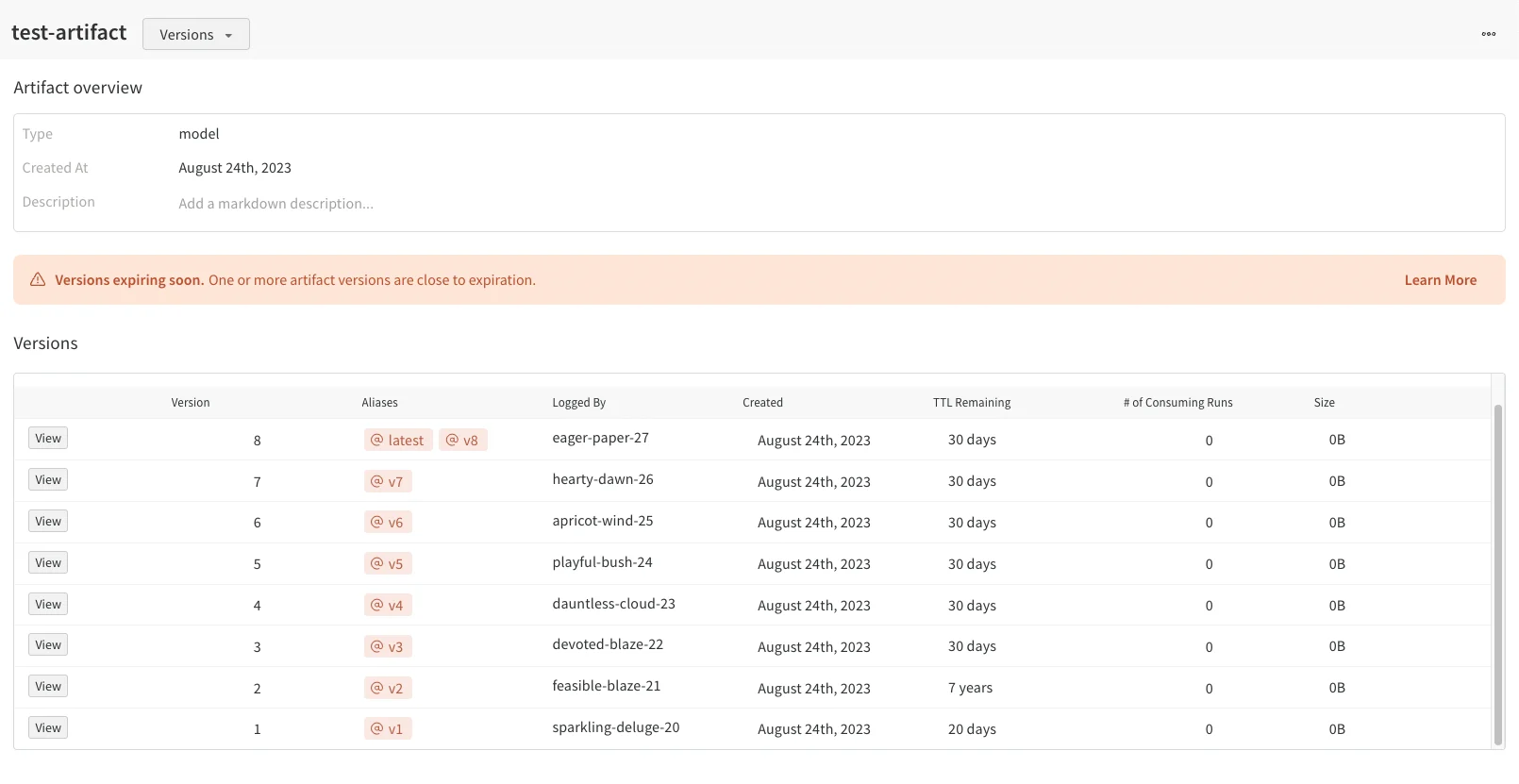
W&B deactivates the option to set a TTL policy for artifacts linked to the Registry. This helps ensure that linked artifacts don’t accidentally expire when used in production workflows.
- Only team admins can view a team’s settings and access team-level TTL settings such as (1) permitting who can set or edit a TTL policy or (2) setting a team default TTL.
- If you don’t see the option to set or edit a TTL policy in an artifact’s details in the W&B App UI, or if setting a TTL programmatically doesn’t change an artifact’s TTL property, your team admin hasn’t given you permissions to do so.
Autogenerated artifacts
Only user-generated artifacts can use TTL policies. W&B-generated artifacts can’t have TTL policies set for them. The following artifact types indicate an autogenerated artifact:run_tablecodejob- Any artifact type starting with
wandb-*
Define who can edit and set TTL policies
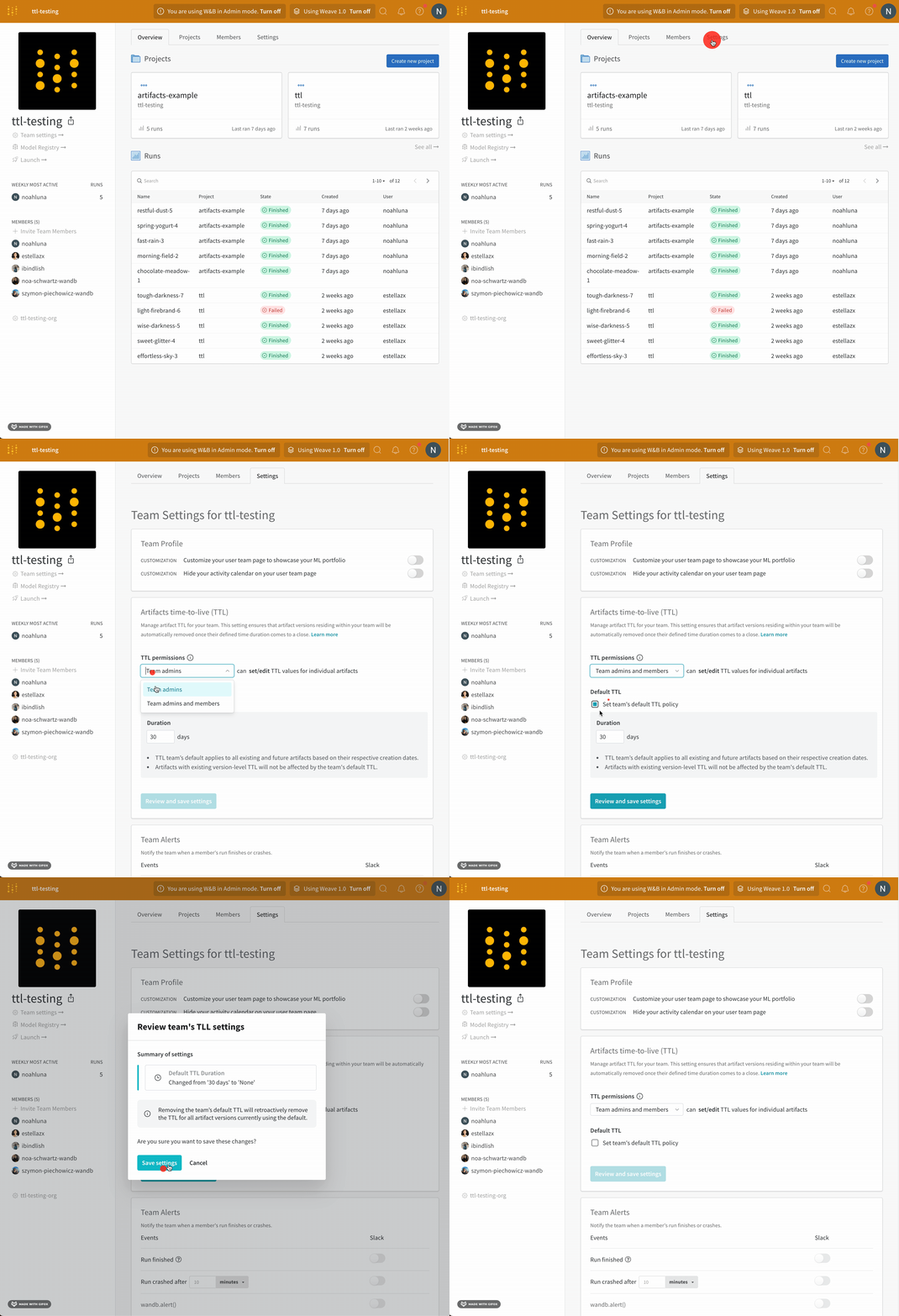
Define who can set and edit TTL policies within a team. Grant TTL permissions only to team admins, or grant both team admins and team members TTL permissions.Only team admins can define who can set or edit a TTL policy.
- Navigate to your team’s profile page.
- Select the Settings tab.
- Navigate to the Artifacts time-to-live (TTL) section.
- From the TTL permissions dropdown, select who can set and edit TTL policies.
- Click Review and save settings.
- Confirm the changes and select Save settings.
Create a TTL policy
Set a TTL policy for an artifact either when you create the artifact or retroactively after you create the artifact. For all the following code snippets, replace the bracketed placeholders with your own values to use the code snippet.Set a TTL policy when you create an artifact
Use the W&B Python SDK to define a TTL policy when you create an artifact. You typically define TTL policies in days.Defining a TTL policy when you create an artifact is similar to how you normally create an artifact, except that you pass in a time delta to the artifact’s
ttl attribute.- Create an artifact.
- Add content to the artifact such as files, a directory, or a reference.
- Define a TTL time limit with the
datetime.timedeltadata type that is part of Python’s standard library. - Log the artifact.
Set or edit a TTL policy after you create an artifact
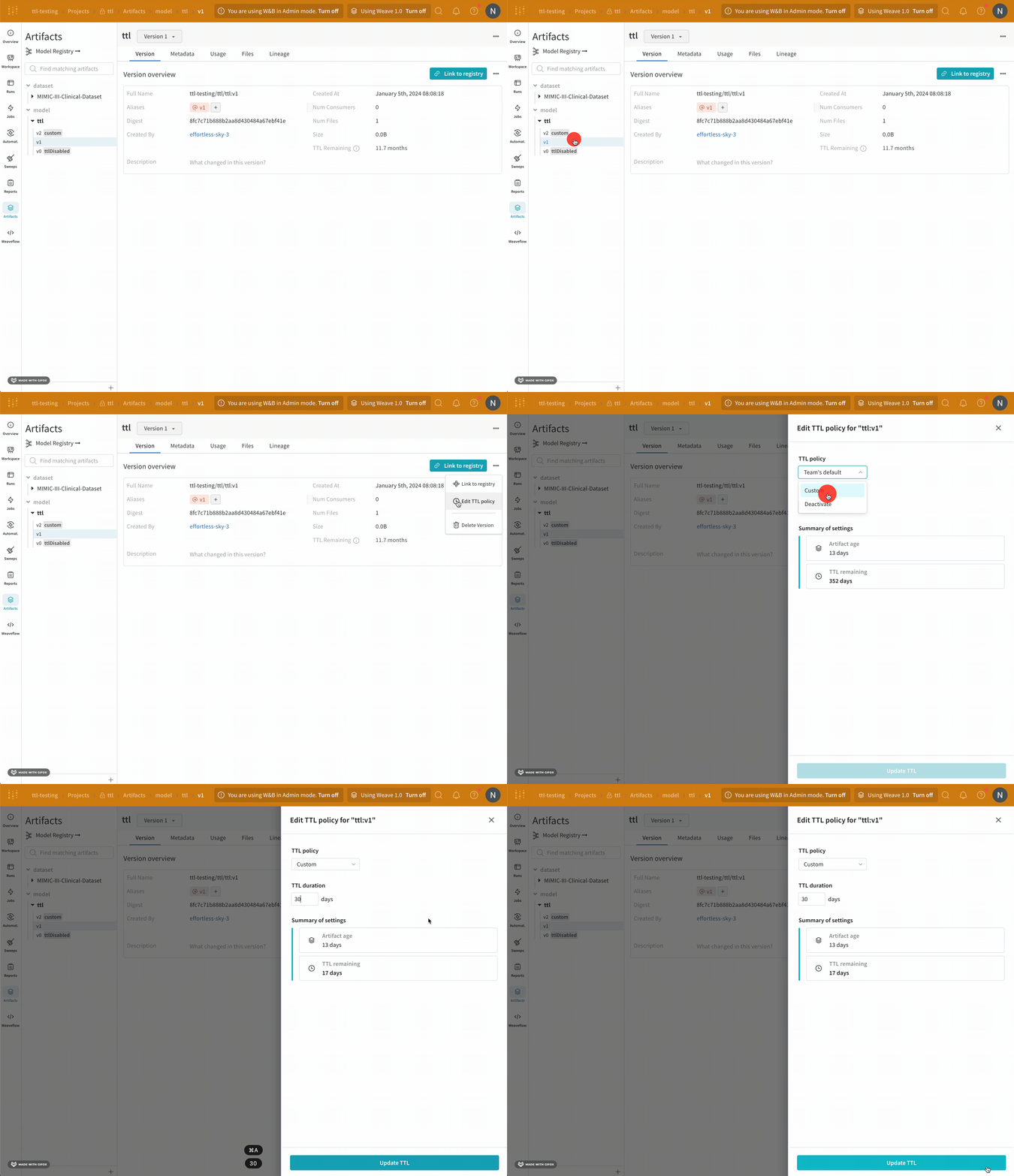
Use the W&B App UI or the W&B Python SDK to define a TTL policy for an artifact that already exists.When you modify an artifact’s TTL, W&B still calculates the expiration time using the artifact’s
createdAt timestamp.- Python SDK
- W&B App
- Fetch your artifact.
- Pass in a time delta to the artifact’s
ttlattribute. - Update the artifact with the
savemethod.
Set default TTL policies for a team
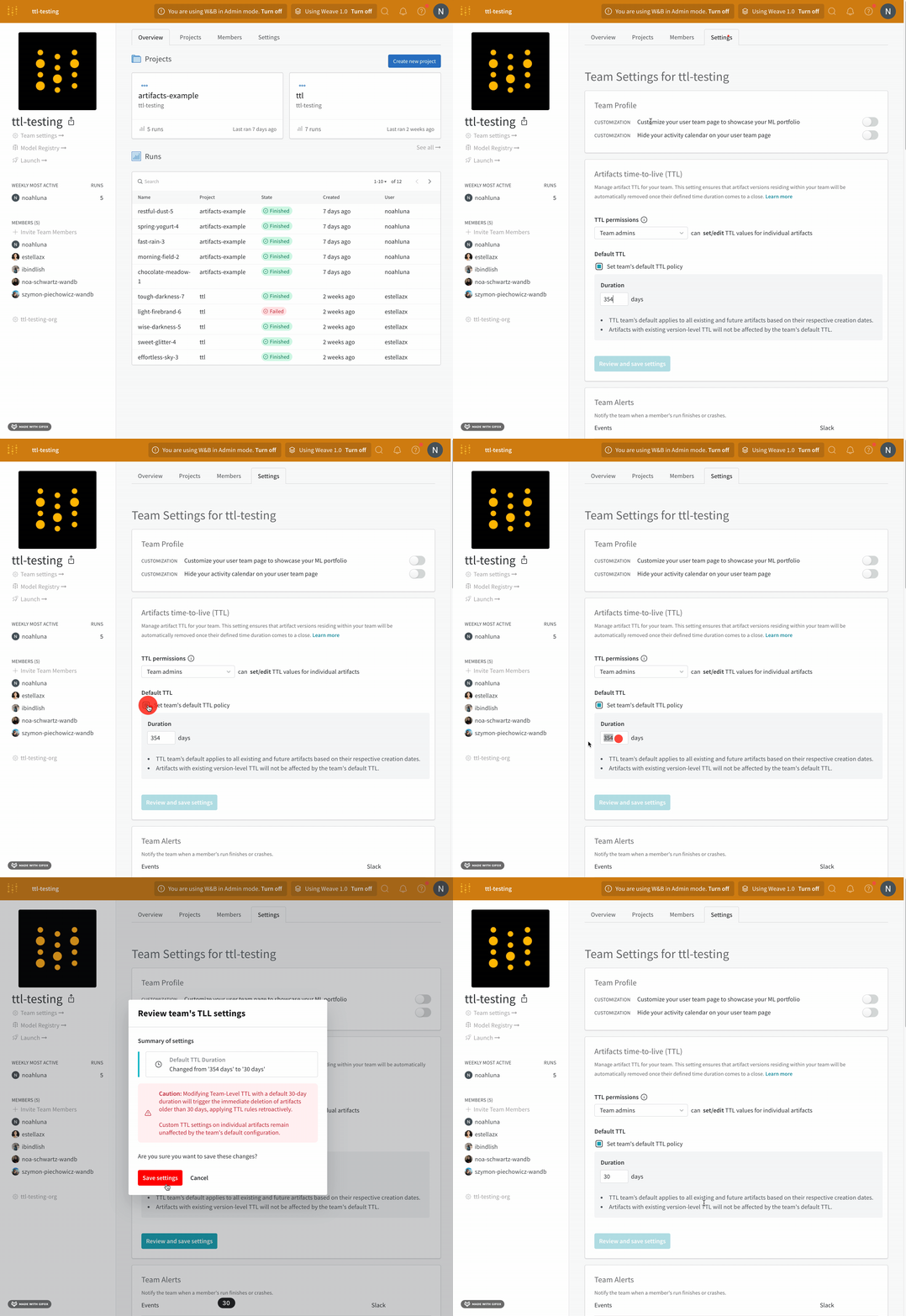
Only team admins can set a default TTL policy for a team.
- Navigate to your team’s profile page.
- Select the Settings tab.
- Navigate to the Artifacts time-to-live (TTL) section.
- Click the Set team’s default TTL policy.
- Within the Duration field, set the TTL policy in units of days.
- Click Review and save settings.
- Confirm the changes and then select Save settings.
Set a TTL policy outside of a run
Use the public API to retrieve an artifact without fetching a run, and set the TTL policy. You typically define TTL policies in days. The following code sample shows how to fetch an artifact using the public API and set the TTL policy.Deactivate a TTL policy
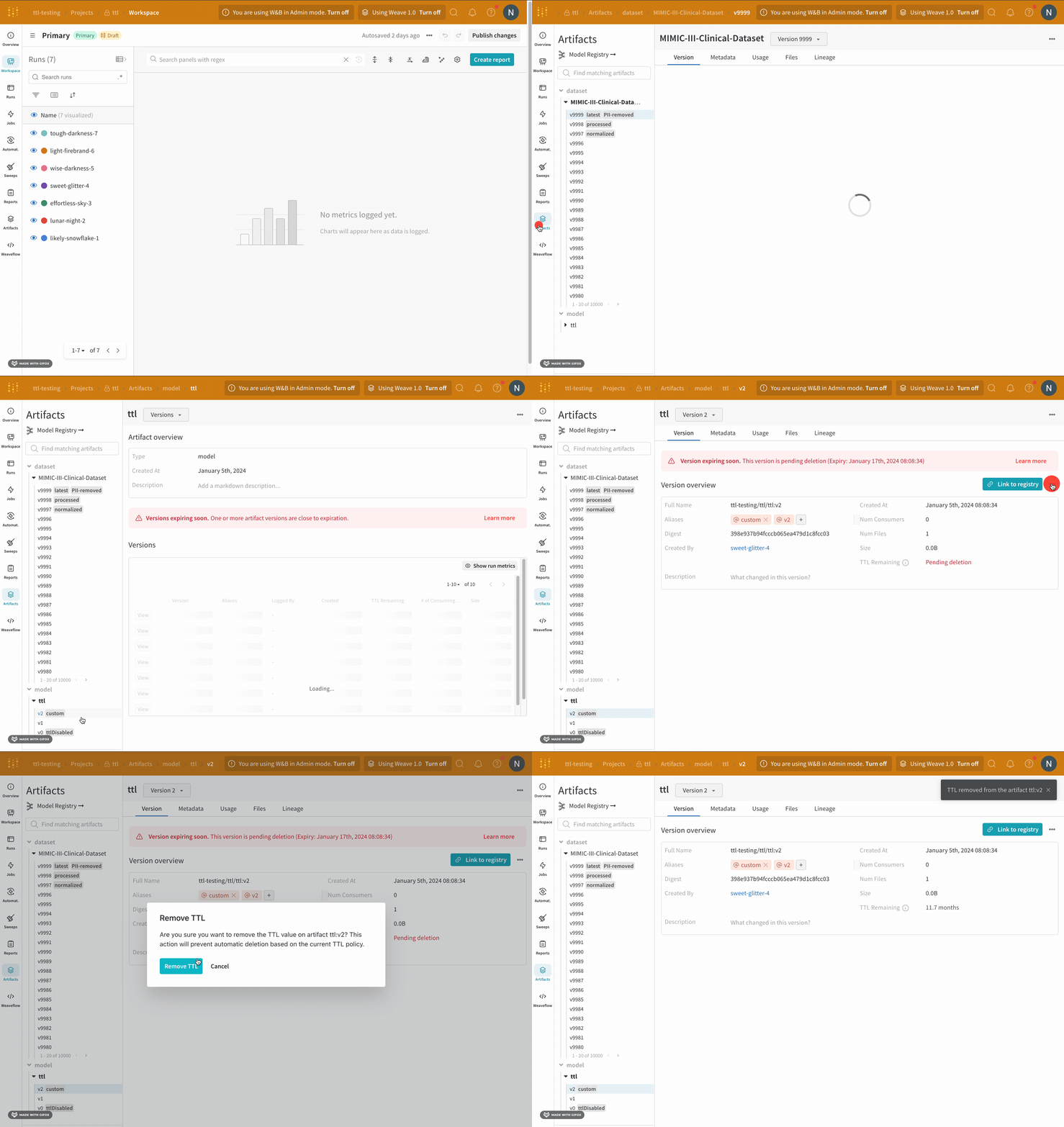
Use the W&B Python SDK or W&B App UI to deactivate a TTL policy for a specific artifact version.- Python SDK
- W&B App
- Fetch your artifact.
- Set the artifact’s
ttlattribute toNone. - Update the artifact with the
savemethod.
View TTL policies
View TTL policies for artifacts with the Python SDK or with the W&B App UI.- Python SDK
- W&B App
Use a print statement to view an artifact’s TTL policy. The following example shows how to retrieve an artifact and view its TTL policy: